ChatGPT now lets you lock private chats with a PIN

OpenAI executive addresses AI safety fears and government system hack
OpenAI Chief Global Affairs Officer Chris Lehane addresses the investigation into an OpenAI hack on an Australian government Medicare portal. During an interview with Lawrence Jones, Lehane explains the context of the July security incident and shares findings from their ongoing review. He also reacts to a new Fox News poll showing 71 percent of Americans oppose local AI data centers.
NEWYou can now listen to Fox News articles!
Ever handed someone your phone or let them use your computer to show them something, then suddenly worried about what else they might see? Maybe you've been using ChatGPT to work through a personal issue or plan a surprise for someone. Your conversation history can reveal quite a bit.
Now, OpenAI is giving you a way to keep certain conversations out of sight. The company just introduced Locked Chats, a new feature that lets you protect individual ChatGPT conversations with a four-digit PIN. On supported devices, you can also use Face ID, Touch ID or your phone's unlock method.
That sounds reassuring, especially as more people turn to artificial intelligence for personal advice. However, there are a few privacy limitations worth understanding before you start locking everything down. Here's how the feature works and how to set it up.
Missed CyberGuy LIVE? Watch the replay and discover 5 ways to travel smarter and save money.
Our free CyberGuy LIVE class, 5 Ways to Travel Smarter and Save Money, has ended, but you can still watch the full replay. Kurt "CyberGuy" Knutsson walks you through five practical ways to protect your phone and personal information, avoid common travel scams, find better deals, save money on bookings and use technology to make your travels easier and less stressful. No technical experience is needed.
Watch the free replay and downloadable checklist now at CyberGuyLive.com.
FAKE CHATGPT BILLING EMAILS CAN STEAL YOUR LOGIN

OpenAI's new Locked Chats feature adds another layer of privacy for people using ChatGPT to discuss personal or sensitive topics. (Kurt "CyberGuy" Knutsson)
What are ChatGPT Locked Chats?
OpenAI's new Locked Chats feature allows you to protect selected conversations without deleting them. Once you lock a chat, it moves into a separate area under Projects > Locked chats. The conversation disappears from your regular chat history, pinned chats and standard search results. Its title and contents stay behind your PIN until you choose to open them. You can even continue the conversation later without moving it back into your regular history.
Think about how useful that could be if you share a computer with your spouse or occasionally let someone use your phone. Perhaps you're researching an anniversary surprise and don't want the details popping up in your sidebar. Now, you have a way to keep that conversation separate.
There's one important detail if you already use ChatGPT Projects. Locking a conversation removes it from its original project. As a result, the conversation loses access to that project's instructions, files and memory. Even if you unlock it later, the conversation returns to your regular history rather than its previous project.
The feature is rolling out gradually to ChatGPT Free, Go, Plus, Pro, Business, Enterprise and Edu users. It works on the web, in the iPhone and Android apps and in the new ChatGPT desktop apps for Mac and Windows. OpenAI says ChatGPT for Healthcare does not support Locked Chats.
How to lock a ChatGPT conversation with a PIN
You can lock an existing conversation in a few steps. The process is similar whether you're using ChatGPT on your computer, iPhone, Samsung Galaxy or Google Pixel.
Note: If you don't see Lock chat, the feature may not have reached your account yet. OpenAI is releasing it gradually. Some conversation types also cannot be locked.
- Open ChatGPT and sign in to your account.
- Find the conversation you want to protect.
- Open the conversation's three-dot menu (•••).
- Select Lock chat.
- Select Lock chat again to confirm.
- If this is your first time, select Create a PIN.
- Enter a four-digit PIN.
- Enter the PIN again to confirm it.
Your conversation will move into Locked chats. The PIN belongs to your OpenAI account, so you can use the same PIN across supported devices where you're signed in.
Note: If you don't see Lock chat, the feature may not have reached your account yet. OpenAI is releasing it gradually. Some conversation types also cannot be locked.
META AI LAUNCHES PRIVATE INCOGNITO CHAT
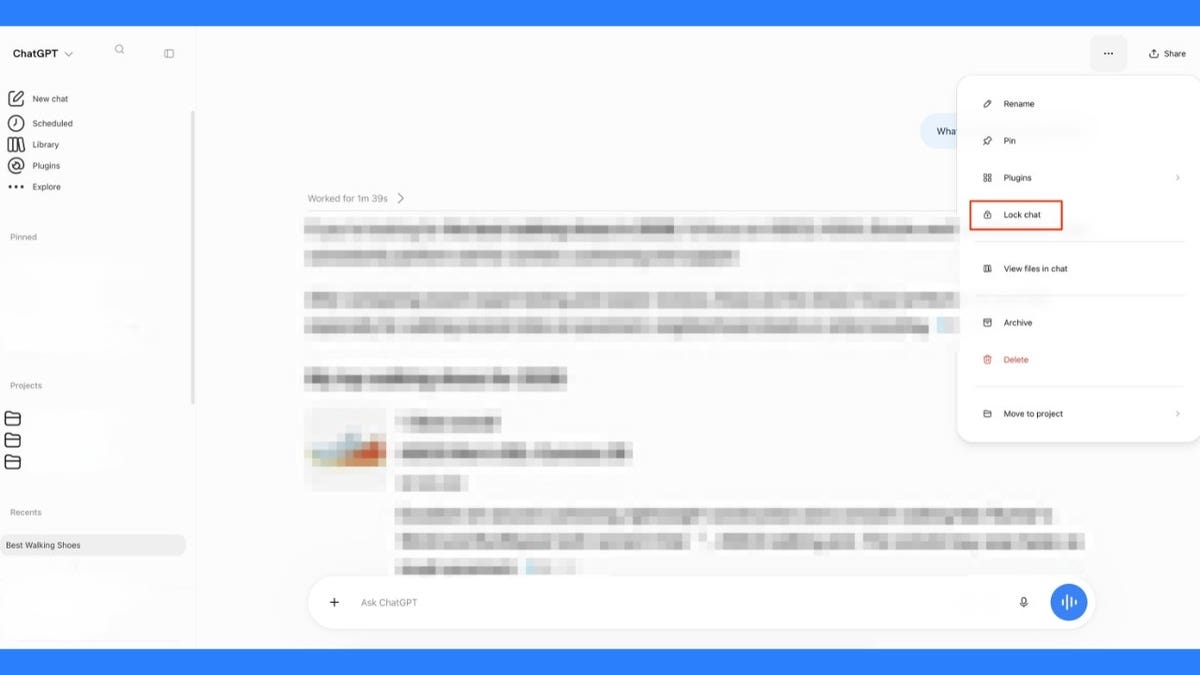
ChatGPT users can now select "Lock chat" from a conversation's menu to protect it with a four-digit PIN and hide it from regular chat history. (Kurt "CyberGuy" Knutsson)
How to use Face ID or Touch ID for ChatGPT Locked Chats
Typing a PIN every time you want to open a personal conversation can get tiresome. Fortunately, OpenAI supports biometric authentication on compatible iPhones and device authentication on supported Android phones.
How to use Face ID or Touch ID on iPhone
- Open the ChatGPT app.
- Open the sidebar and tap your profile icon to access Settings.
- Select Security and login.
- Tap Account PIN.
- Turn on Use Face ID or Use Touch ID, if available.
- Follow any prompts to enable authentication.
You can now use supported biometric authentication to access locked conversations on that iPhone. Your four-digit account PIN remains available as a backup.
How to use device unlock on Samsung Galaxy and Google Pixel
Samsung Galaxy and Google Pixel users follow the same steps inside the ChatGPT app. The available authentication method depends on your phone and its settings.
- Open the ChatGPT app.
- Go to Projects.
- Select Locked chats.
- Enter your four-digit PIN when requested.
- Select Use device unlock when prompted, if available.
- Follow your phone's instructions to enable authentication.
Once enabled, you can use your supported device unlock method to access protected conversations. Depending on your phone, that may include fingerprint recognition or another available authentication method.
This setting applies only to the device where you enable it. Turning on device authentication on your Galaxy or Pixel does not automatically enable it on another phone.
How to open a locked ChatGPT conversation
Once you've protected a chat, you'll probably want to return to it. Fortunately, OpenAI keeps your locked conversations in one dedicated location.
- Open ChatGPT.
- Go to Projects.
- Select Locked chats.
- Enter your four-digit PIN or use supported device authentication.
- Select the conversation you want to reopen.
You can continue chatting as you normally would. Opening the conversation temporarily gives you access without permanently removing its protection. You can also start a brand-new conversation directly inside Locked chats. After opening that area with your PIN, simply enter a new message. It will remain in the protected section. However, there's a limitation worth knowing. OpenAI doesn't allow you to archive, pin, move or share a conversation while it's locked. You'll need to permanently unlock it before using those options. Anyone who can open a locked conversation can also copy its contents.
Will ChatGPT lock your conversations again automatically?
Yes, although the timing depends on your device. On iPhone, Samsung Galaxy and Google Pixel, OpenAI says access ends automatically after you've been away from a locked chat or the Locked chats area for one minute. The same one-minute rule applies when the app runs in the background.
On the web, refreshing the page or closing the tab ends access. The desktop and web versions also relock after you've been away from the authorized window. If you want to secure everything immediately, select Lock now.
There's another detail worth knowing. A conversation may remain visible in the browser tab immediately after you lock it. Similarly, another device that's already running ChatGPT might temporarily display an older conversation title until it refreshes. So, check your screen before handing over your device.
How to move a locked ChatGPT conversation back to regular history
You may eventually decide that a conversation no longer needs extra protection. You can return it to your normal history without deleting its contents.
- Open Projects > Locked chats.
- Enter your PIN or use device authentication.
- Open the conversation you want to restore.
- Select the three-dot menu (•••).
- Choose Unlock chat , or Unlock on iPhone.
- Confirm by selecting Unlock chat.
The conversation returns to your regular history and can eventually appear in ordinary search results again.
The privacy limits of ChatGPT Locked Chats
Here's where I want you to pay close attention. Locking a conversation can stop someone casually browsing your chat history. However, OpenAI makes clear that Locked Chats do not provide end-to-end encryption or create a separate encrypted vault. The company also says locking a chat does not change how long it retains your information. Your existing Improve the model for everyone setting remains unchanged, too.
Memory introduces another consideration. If ChatGPT remembered something before you locked a conversation, that information can still exist in regular Memory. Once the chat is locked, new information remembered from subsequent messages stays within the Locked Chats memory area. Other locked conversations can use that information, but regular chats do not receive those new memories automatically. Locked chats can also draw on existing regular Memory when it's enabled.
There's also a potential surprise involving shared links. If you previously shared a conversation through a link, locking it does not revoke that link. Anyone with the existing link may still access the content that was previously shared. You must delete the shared link separately to stop that access.
Files come with their own limitations. Documents and other files uploaded or created inside a locked conversation receive the same protection as the chat itself. However, files already stored elsewhere in ChatGPT's Space or brought in from connected services keep their existing access permissions. Locking a conversation won't automatically protect those separate files.
For workplace accounts, existing organizational retention and compliance policies still apply. OpenAI says Enterprise and Edu conversation logs can include locked chats through its compliance tools. Workspace administrators cannot unlock your chats or reset your PIN, but authorized compliance systems may still access applicable conversation data.
These are important limitations if you're discussing financial information or other highly personal subjects. I would still avoid uploading passwords, Social Security numbers or complete banking credentials to a general ChatGPT conversation.
How to stop ChatGPT from using your new chats for AI training
If you're concerned about how OpenAI handles your conversations, there's another privacy setting you should review. Turning off Improve the model for everyone prevents your new conversations from being used to train OpenAI's models. These instructions apply to personal ChatGPT accounts. OpenAI says content from ChatGPT Business, Enterprise and Edu workspaces is not used to train its models by default.
Here's how to do it.
On the ChatGPT website
- Open ChatGPT and sign in.
- Click your profile icon to open your account menu.
- Select Settings.
- Click Data controls.
- Select Improve the model for everyone.
- Turn the setting off.
- Select Done.
On iPhone, Samsung Galaxy and Google Pixel
- Open the ChatGPT app.
- Open the sidebar.
- Tap your profile icon to access Settings.
- Select Data controls.
- Turn off Improve the model for everyone.
Your new conversations will no longer be used for model training after you turn off this setting. They can still remain in your chat history, so you'll need Locked Chats or another option to keep them out of view. For additional privacy controls across other AI services, see my guide on how to opt out of AI data collection in popular apps.
ChatGPT Locked Chats vs. Temporary Chat: Which should you use?
OpenAI already offers a feature called Temporary Chat, which serves a different purpose. Temporary Chats don't appear in your regular history or create new memories. OpenAI also excludes them from model training while they remain temporary. However, the company may retain temporary conversations for up to 30 days for safety purposes. Depending on your settings, a Temporary Chat can also use existing personalization information.
Locked Chats make more sense when you want to save a conversation and return to it later without leaving it exposed in your normal history. You can keep adding messages, and the conversation stays behind your PIN.
So, if you're having a one-time discussion you don't need to save, Temporary Chat may be the better choice. If you're working through something personal over several days, Locked Chats gives you a way to maintain that conversation with additional access protection.
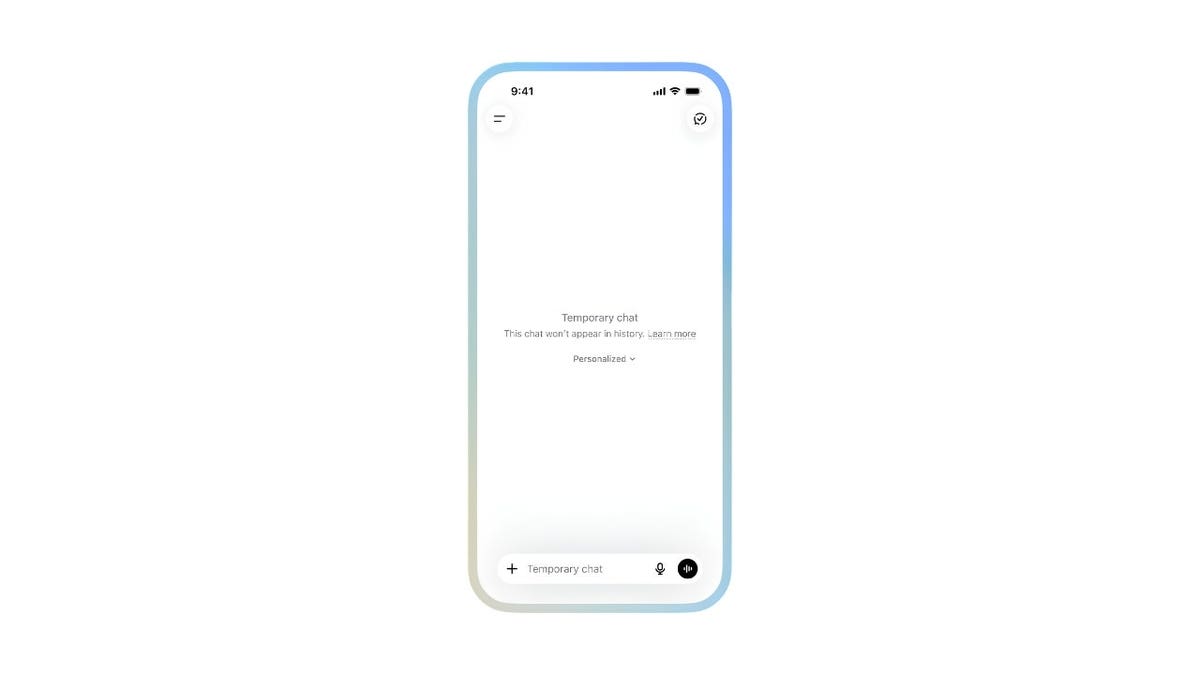
ChatGPT's Temporary Chat feature keeps conversations out of regular history, offering an alternative for discussions you don't need to save. (Kurt "CyberGuy" Knutsson)
What happens if you forget your ChatGPT PIN?
This is one detail I really don't want you to overlook. Resetting a forgotten PIN permanently deletes all your locked chats, along with memories stored only within those chats and files or other content protected only by the previous PIN. OpenAI says the deletion cannot be undone. Even its support team cannot recover that protected content. If you remember your current PIN and simply want to change it, you can do so without losing your conversations.
How to change your ChatGPT PIN
- Open ChatGPT.
- Go to Settings.
- Select Security and login.
- Select Account PIN.
- Under Change PIN, select Change on the web or desktop, or Change PIN on iPhone or Android.
- Enter your current PIN.
- Create and confirm your new four-digit PIN.
If you've forgotten your PIN, you can also reset it from Settings > Security and login > Account PIN. However, you'll need to verify your identity and confirm the permanent deletion of your protected chats and associated content before creating a replacement PIN.
One more thing: OpenAI doesn't allow every conversation to be locked. The exclusions include Temporary Chats, archived chats, group chats and conversations created from shared links. Chats involving scheduled tasks, meeting recordings or background tasks are also excluded. The same applies to conversations with responses saved as project sources. Some Health, Codex and Work conversations have additional restrictions. If the Lock chat option doesn't appear, your conversation may not qualify.
Kurt's key takeaways
I like that OpenAI is finally giving people more control over which conversations appear when someone opens ChatGPT. As AI becomes a place where people work through personal decisions, there's a real need for some discretion. Being able to hand someone your phone without exposing an entire conversation history is a useful improvement. Still, I would treat Locked Chats as a convenience and access-control feature rather than a guarantee of confidentiality. The four-digit PIN helps keep curious eyes away, but your broader privacy depends on the information you share and the settings you've chosen. And that leaves me wondering whether OpenAI should eventually offer something stronger for conversations people consider deeply private.
Would you trust ChatGPT with your most personal conversations if they were protected by a PIN, or should OpenAI offer stronger privacy protections before you feel comfortable sharing? Let us know by writing to us at CyberGuy.com.
Sign up for my FREE CyberGuy Newsletter
- Get my best tech tips, urgent security alerts and exclusive deals delivered straight to your inbox.
- For simple, real-world ways to spot scams early and stay protected, visit CyberGuy.com - trusted by millions who watch CyberGuy on TV daily.
- Plus, you'll get instant access to my Ultimate Scam Survival Guide free when you join.
CLICK HERE TO DOWNLOAD THE FOX NEWS APP
Copyright 2026 CyberGuy.com. All rights reserved.
Kurt "CyberGuy" Knutsson is an award-winning tech journalist who has a deep love of technology, gear and gadgets that make life better with his contributions for Fox News & FOX Business beginning mornings on "FOX & Friends." Got a tech question? Get Kurt’s free CyberGuy Newsletter, share your voice, a story idea or comment at CyberGuy.com.
KioskNews shows a cleaned-up reading view extracted from the publisher’s page — the original always lives on their site, not ours.